
Table of Contents
4.4.2. Importing data
Database connection uses SQL queries to import your data into Streamline from the database. Each of them is specially designed to import a particular piece of data. In this article, we explain:
- how to configure the Database connection to import the data using SQL-queries; and
- how to set up Streamline to automatically synchronize the project using your queries as you click the Update data button.
Importing queries
Database connection dialog has several tabs, such as Transactions, Item info, and so on (see figure below). Each tab is designed to import particular data by executing the query inserted into the main field of the tab.
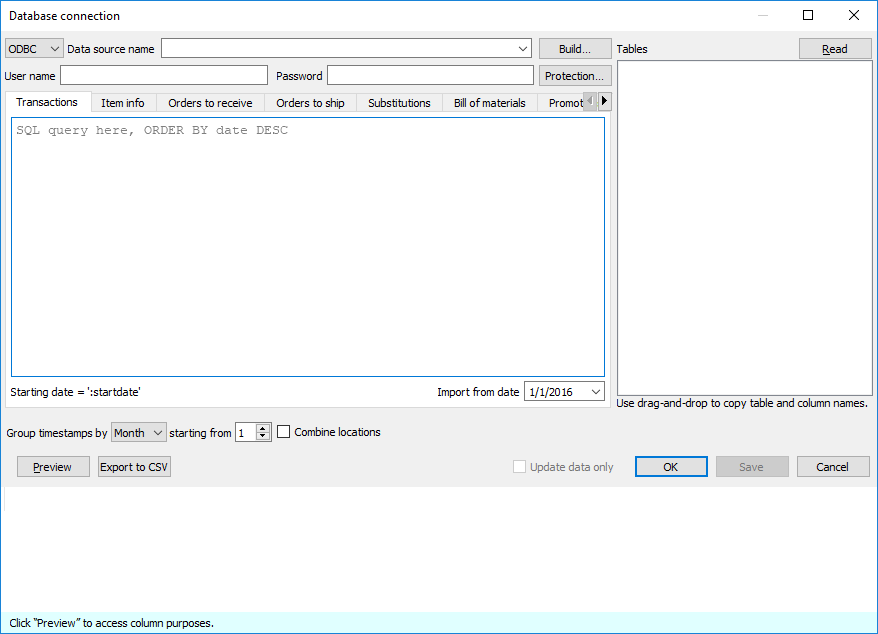
Strictly speaking, to start using Streamline, you can import your data (via deprecated fields) using the query for the Transactions tab only. However, we strongly recommend you to go with a typical workflow when at least four queries are used. These are:
- Transactions query
- Item info query
- Orders-to-receive query
- Orders-to-ship query
The other tabs (queries) are optional and are used in special cases that we describe in the table below. This table also matches SQL queries with the data types which they should be used to import.
| Query(tab) | Demand Planning | Inventory Planning |
|---|---|---|
| Transactions | Transactional data:
| Transactional data:
|
| Deprecated data: item description; item category; location category; qty to receive; delivery date; lead time; lead time variance; order cycle; order rounding; min lot; max lot; supplier code; supplier’s currency; shelf life, periods; purchase price/unit; inventory value/unit; item’s info field | ||
| Item info |
|
|
| Deprecated data: qty to receive, delivery date, qty to ship | ||
| Orders to receive | Orders-to-receive information | |
| Orders to ship | Orders-to-ship information | |
| Bill of materials | Bill of materials | |
| Promotions | Promotions information | |
| Substitutions | Substitutions information | |
| Batches | Batches information | |
The table indicates deprecated data that should not be imported normally by those queries. It is strongly recommended to import those data using queries that are specially designed for them.
Last on hand can be imported using the Transactions query too. This can be done only in the case when you are providing On hand change data in the Transactional data. In this situation, the last on hand is imported via the On hand column. Despite this capability, we strongly recommend that you import the last on hand using the Item info query.
Special cases
This section describes the capabilities of the connector to import data in very specific situations that happen rarely. We strongly recommend that you import the data according to the table above.
Item info query is absent
If the Item info query is absent, you can import all necessary information (see Deprecated data) using the Transactions query.
Transactions query includes the location information while the Item info query doesn’t
In this special case, you can import all the fields except for the columns that represent location state (Last on hand, To ship qty, Qty to receive, Delivery date) using the Item Info query. The location state information should be returned via other queries, for example: Last on hand and Qty to ship from the Transactions query and Qty to receive, Delivery date using the Orders-to-receive query.
Import options
The importer can automatically aggregate your data in periods (days, weeks, months) using the Group by option. Thus, if you want to see the forecasts, replenishment plans, and other reports in months, group the data by months.
The Starting from option depends on the Group by parameter and is available only if you group the data by month or week. If you group timestamps by month, the Starting from parameter sets the ordinal number of the day in the month you want to start the import from. If the Group by option is switched to ‘week’, this allows starting the import from the specified day of a week.
Importing your data
To import the data, follow these steps:
- Go to the menu File > New > Database connection.
- Establish the connection to your ODBC data source.
- Go to the specific query tab, for example, to the Transactions tab.
- Enter your SQL query in the main field of the tab.
- Click the Preview button, to execute the query.
- Set the meaning of the columns returned by the query.

The table preview at the bottom of the dialog has a special row with a drop-down list in each column for the returned data. The list displays the data types that Streamline understands and can import in the corresponding query tab. Thus, to import your data correctly, match the meaning of your data column to the most appropriate option in the drop-down list.
7. Repeat steps 3-6 for all your queries.
8. Set the import options and click OK.
In the next sections, we will describe the specifics of each query.
Transactions
This query is used to import the Transactional data. The list of the transactions must be in descending order.

Item info
The purpose of this query is to import current on-hand for each planning item. It is also used to import additional information about planning items such as item categories, location categories, item info fields, constraints, inventory KPIs and others.

Pay special attention to importing the following replenishment parameters:
- Lead time
- Order cycle
- Min lot
- Max lot
- Rounding
- Lead time variance
These characteristics depend on the echelon the planning item resides at. If a planning item is sourced from a DC, these parameters define the replenishment process from that DC. In this case:
- Lead time – the average time interval to deliver an item from DC to the location at the lower echelon.
- Lead time variance – the variance of the Lead time defined above.
- Order cycle – how often you replenish from DC.
- Min lot, Max lot, and Rounding – the constraints that are put on an item when you order it from DC.
If a planning item is sourced from a supplier:
- Lead time – the average time interval to deliver an item by your supplier.
- Lead time variance – the variance of the supplier Lead time.
- Order cycle – how often do you send purchase orders to the supplier.
- Min lot, Max lot, and Rounding – the constraints that are put on an item when you order it from the supplier.
If your supply chain is described by a two-echelon model and there is a shelf life limitation on an item at the lower echelon, you should also provide shelf life for the DC that supplies that item. DC's shelf life must then satisfy the condition:
DC shelf life ≥ Lead time + Shelf life,
where:
- Lead time – the time to deliver the item from the DC to the location at the lower echelon.
- Shelf life – the shelf life limitation at the lower echelon.
If the Supplier code is not given, Streamline attaches those items to an empty supplier code.
The Model type represents the model used to generate forecasts for the selected planning item. The models are available only for the tree leaves in the Tree view.
Along with the automated calculation of the Model type, Streamline allows you to set model type by importing it from your data source. To do this, the Model type column in the Item info table must contain only these specific values:
- Default
- Constant
- Linear
- Seasonal
- Intermittent
- Preorder
- Inactive
- Auto-preorder
- Auto-termination
The Model type in the Panel under the Demand tab will inherit the imported Model type as well as the corresponding column in the Inventory tab.
When importing Material Procurement Status the 'Purchase BOM Items' column in the Item Info table is responsible for this, and it is best to import it as a 1 or 0 value. For example, Streamline sets the 'Purchase' for production items if a cell for the particular item in this column has the value '1'.
Order Cycle parameter in days The column name should be specified in days or periods if you import in the Item Info Order Cycle parameter. The values are imported only to the Order Cycle column in the Inventory.
Depending on whether the ‘Order Cycle, days’ or ‘Order Cycle, periods’ was imported, the order cycle will continue to work with this setting. If the specified column was imported, it is not possible to change it from days to periods and vice versa, unless this specification was not imported. Therefore, if it was not, a default Order Cycle can be set in the Settings, where the user can choose to display it in days or periods, or lead times.
Importing categories
Channel Info Tab
The Channel Info Tab is used for managing channels in the project.
This Tab is optional and is used only if you need to apply any filters to existing channels from your data source, otherwise, it isn’t needed.
The data type that is required is shown in the table below:

Channels Tab is supposed to have all the same Item-Location pairs as you have in the Item Info Tab plus Channels that you want to see in the project. There should be no extra Item-Location pairs that are not presented in the Item Info Tab. On the other hand, the Item - Location pairs that aren’t mentioned in the Channels Tab will have No Channel node in the Tree.
Orders to Receive
This query is used to retrieve the information about items to be received.

Orders to Ship
This query is used to pull the data about items that are on open sales orders or backorders.

Substitutions
Streamline allows making substitutions when imports the data. That can be used when you need to disassemble kit items and have the forecasts and procurement plans for the components only. To understand a kit’s content, Streamline implements substitution rules. The rule syntax looks like:
<Kitted item code><Qty in kit><Component code>.
Your SQL query should return a set of such rules. As you can see, the columns should be ordered according to the rule syntax.

Bill of Materials
This query is used to import bill of materials data.

Promotions
This query is used to import information enabling Streamline to automatically adjust the forecasting models according to the given promotional discounts. The figure below shows an example of the query and the result it returns from a database.

As you see from the figure, besides future promotions, you must provide the promotions' history for the corresponding products.
Batches
This query imports information about batches (see figure below).

Inventory parameters
The inventory parameters tab allows importing future Max lot values by future periods. This feature is available in the database and transactional spreadsheet connectors.
The Max lot value in the Inventory Parameters tab must only be filled out if indicating the maximum lot value for future time periods is required. It is not mandatory to complete otherwise.
The required data for this feature is the following:

By applying the maximum lot for future periods, the quantity in orders specified in the ordering plan will be subject to a constraint, ensuring that they do not exceed the specified maximum quantity for the relevant periods. And once the specified day for the new maximum lot arrives, it will become the current constraint, effectively overriding any previous constraints that were in place.
It can be imported through the Inventory parameters tab in the database connection.

Updating data (importing only last changes)
At first, you import all the sales orders data. It’s not necessary to import all the data again in future imports. It’s reasonable to import only the last changes. To make Streamline do this automatically the :startdate parameter should be used in the Transactions query.
An example of the query is shown below:
SELECT [Posting DATE] AS [DATE],
       IIF (e.[Entry TYPE] = 1, -e.Quantity, 0) AS [Quantity],
       i.[No_] AS [Item code]
       FROM dbo.[CRONUS International Ltd_$Item Ledger Entry] AS e
       INNER JOIN dbo.[CRONUS International Ltd_$Item] AS i
       ON i.[No_] = e.[Item No_]
       WHERE i.[No_] IN
 (
 SELECT i.[No_]
 FROM dbo.[CRONUS International Ltd_$Item] AS i
 WHERE Blocked = 0
 ) AND [Posting DATE] >= ':startdate';
To import all the sales history using this query, you should specify the Import from date parameter to cover the history. Now, when you click the Update data button of the program toolbar, Streamline calculates the start date so that only the last changes of the sales history are imported. It substitutes the :startdate parameter of the query by the calculated date and executes the query.
